Showing posts with label Jenn Mason. Show all posts

Friday, October 03, 2014

TV time with Scrapbook Soup and ScanNCut cards!

Watch Scrapbook Soup episode 401 this week with host Julie Balzer and guess who!?
Here's the 411 On the most recent episode! (not written by me)
It’s a whole new season of Scrapbook Soup on line! Episode 401 will be on the Scrapbook Soup website starting at noon on Friday, October 3, 2014 and will run for 7 days.
The 400 series is all about developing a personal style. Create your own style as you mix it all up: materials, designers and techniques for one flavorful Scrapbook Soup!
Host Julie Fei-Fan Balzer and her guest, Jenn Mason, use ScanNCut to create colorful cut-out cards with photos.  Jenn draws her own template for the card and includes a mini-gift card in the template so she can scan and cut out both at once.  Using decorative papers that are colorful on both sides, she uses the perfectly cut images and negative space to create one-of-a-kind cards.

And here's the 411 on the most recent episode (written by me!)

Filming with Julie is ALWAYS a blast. We are all giggles behind the scenes and laughing with the crew. Even though I don't really scrapbook, I do love being crafty, especially with friends. That's why I always say yes when Julie invites me on set! 

If you watch it, let me know what you think! and if you make something from the show, send me a pic, too!

Have a lovely weekend all!


Friday, September 19, 2014

You got your Stencils in my Stamps!


I was reading a great blog post by my art partner in crime, Julie Fei-Fan Balzer this week and I just loved it. She wrote it to kick off a week of stenciling so you'll want to check out this post (click on the photo), and every post for the whole week. She even challenged her readers to share their cool stencil techniques in a quest blog.

 Picture from Julie Balzer's blog www.Balzerdesigns.com
Click on the photo to read and subscribe to Julie's blog!

Which got me thinking. What haven't I tried with stencils yet? (I love a challenge!) I immediately thought of carved stamps. I actually couldn't wait to try it out and see what I could come up with this morning. So here is what I came up with:

I used Julie's small cloud stencil (by The Crafter's Workshop), and carving supplies from Speedball.
Next I traced the reversed of the stencil with a permanent pen so that it's easy to see.
Thickening the inside of the line gives me a strong bold look to start with.

I like to go around my stamp first with the smallest v carving blade. This gives me a "safety" zone.

I started carving away the center of the stamp until I got the semi-woodcarver look I was going for. I kept checking it with my stamp pad until I was satisfied.
I used my watercolor paper from this post for the background and stenciled light clouds with white acrylic paint.

You can just barely see the clouds...but just you wait!
I gave the clouds a squirt of Dylusions spray ink by Ranger. (Maybe, too much!)

Next, I quickly wiped over the piece with a baby wipe and the clouds resist the ink!
And now it's time to stamp! I cut my stamp down to exactly the same shape of the stencil so that I could easily line it up. I also cut it a little smaller than the stencil shape so it would be easy to get it all registered.
This piece really reminded me of one of MY favorite things...sunshowers. So I used white Enamel accents by Ranger and a  pin to make glossy, 3-D raindrops and then layered white and orange PanPastels in the upper corner and used a pencil eraser to erase some definition in the rays.

And here is the finished happy sun shower!
Are you motivated by challenges like I am? Are you planning on making something this weekend? Dinner, baking, artwork, art journaling, art quilt, or something else? If you're stuck, think about what two items in your arsenal you haven't put together in a while and see what ideas come from the pair-up.

If you've had great learning successes or even failures from your pair-ups, let me know! I'd love to hear what a fellow challenge-lover has done!

Have a great weekend!


Monday, September 15, 2014

How to make an animated GIF for your blog! And 5 reasons to try!

Bindi Jumps for Beggin' Strips - A furry animated GIF

Today I'm sharing a quick and easy tech HOW-TO!
"Uh, Jenn, why are you going all tech on us?" you ask.
Because I'm on a mission to keep you all young and hip. I know you are either a teenager, or you have one in your life who you would like to think that you're not obsolete. Am I right?

You may have caught Friday's blog post where I needed an animated GIF to show a Thaumatrope business card in motion. It only took me a few minutes to figure it out and I knew I wanted to share the process with you as soon as possible. My apologies to the non-iOS users, this is a how-to on an iPhone. There are hundreds of ways to make animated gifs, if you don't have an iPhone, I recommend you take 30 minutes to give it a try on your Android or other smart phone app.

First, let me take a second to share a little extra knowledge about the .gif file format. I have always pronounced it (even from art school) with a hard g, but it actually is supposed to be pronounced like the peanut butter (JIFF). Here's the proof. But, I'm not going along without a gripe or two.

Why should you make an animated gif for your blog or website? I'm so glad you asked! Here is my list of 5 reasons to try making a .GIF:

  1. You'll learn something new and you'll be a little smarter
  2. You can show a technique like folding paper or hand stitching in a loop for your reader
  3. You can have fun showing something in fast or slow motion
  4. The draw attention to something specific in your blog with motion.
  5. Sharing GIFs can go viral in social media


Are you ready to try? Here are the directions. Read them then turn a short video into a gif and post it! tag it #MakingGifs. I can't wait to see them all!

Directions:
To get started, I downloaded the FREE 5secondsapp (@5secondsapp) from the iTunes App store.

Then I wanted to shoot a quick video. Bindi, the Wonder Pup, said I should definitely shoot her getting some Beggin' Strips.

Clip of Bindi in motion

The whole clip in my photo stream.

Tap the Camera button to get this
options. Choose Video from
Library.
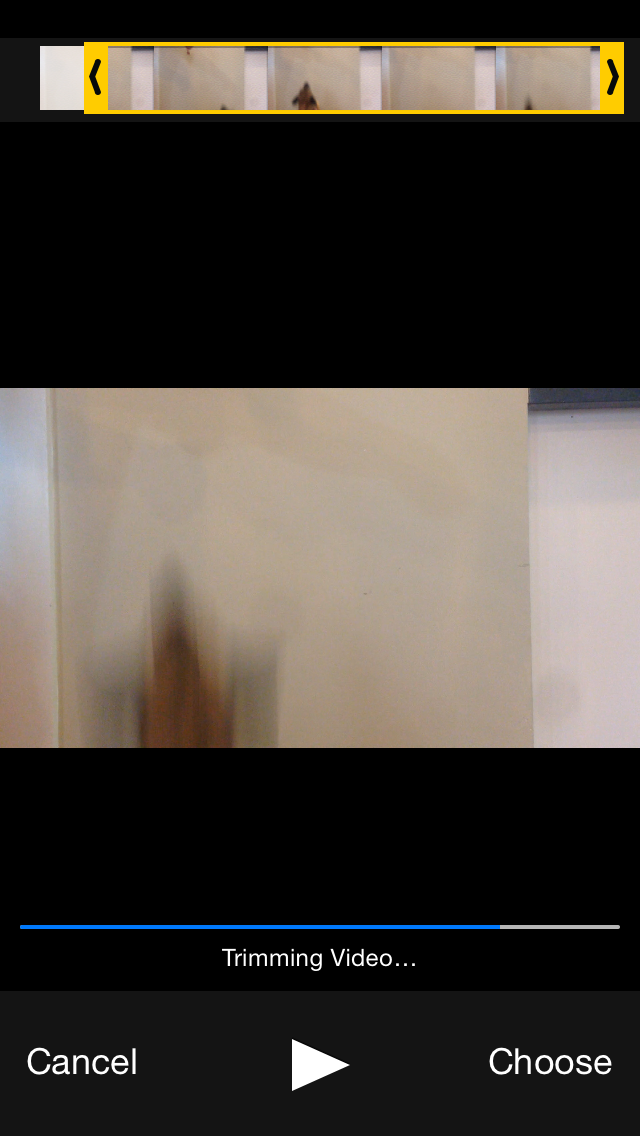
Your clip may be too long. If so
you'll get this warning. Move the
yellow slider to adjust the section.


Once you have the slider
where you want, tap Choose.

The app will then trim the video.

Then the app will convert it.


There are multiple editing options
along the bottom of the screen.
First tap at the top to add a title.


Like this.
Note the speed change along the
bottom, too. That can make
a crazy jumping dog!

Then use the crop square option
 and crop the video to where
the action is.


Now you can share or save it.

Mail it to your friends!